SecID POC

How Does the SecID Platform Work?

To begin using SecID, you must first enable assessments for each technology you wish to evaluate. After that, you define assessment schedules to ensure assessments run at appropriate times. These schedules can be customized for each technology.

In SecID, assessments are managed through a concept called an “Assessment View”—a core unit that includes the following components:

  • Assessment View Name

  • Technology Being Assessed

  • Tenant Name

  • Technology Template (if applicable)

Before assessments can run, each technology must be added to an Assessment View. For example:

  • To assess Microsoft 365, you need to create an Assessment View for M365.

  • To assess Active Directory, you must create a separate Assessment View for Active Directory.

Once you’ve created the necessary Assessment Views for your technologies, you can enable the SecID Scheduler Service to run these assessments automatically.

SecID POC

How Long Does a SecID Proof of Concept (POC) Take?

SecID offers an automated Proof of Concept (POC) process that supports over 40 technologies. A full POC across all supported technologies can be completed in just one day.

The process involves the POC Prepare Tool, which helps set up everything needed for the POC. Here’s how it works:

Steps to Prepare the POC:

  1. Install the SecID platform on a Windows Server (2016 or later).

  2. Launch the POC Prepare tool from the SecID interface.

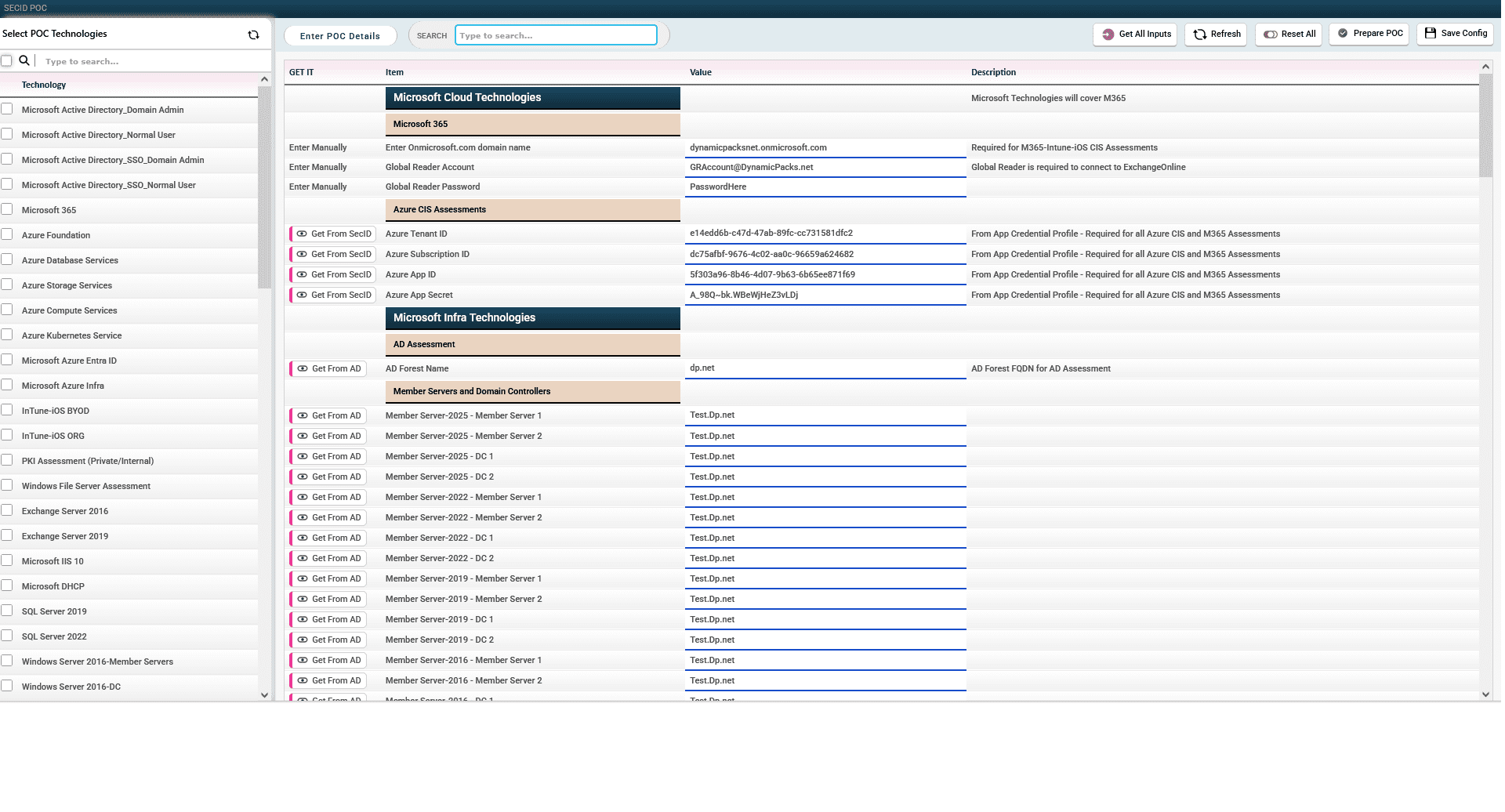
  3. Provide the required inputs:

    • M365 onmicrosoft.com domain name

    • Azure Subscription ID

    • Azure App ID

    • Azure Tenant ID

    • Azure App Secret

    • Domain Admin credentials (for Microsoft infrastructure technologies)

    • SSH credentials (for non-Microsoft infrastructure technologies)

  4. Click “Prepare POC Files”.

This step automatically:

  • Adds all tenants under SecID management.

  • Creates all relevant Assessment Views for each technology.

Executing the POC:

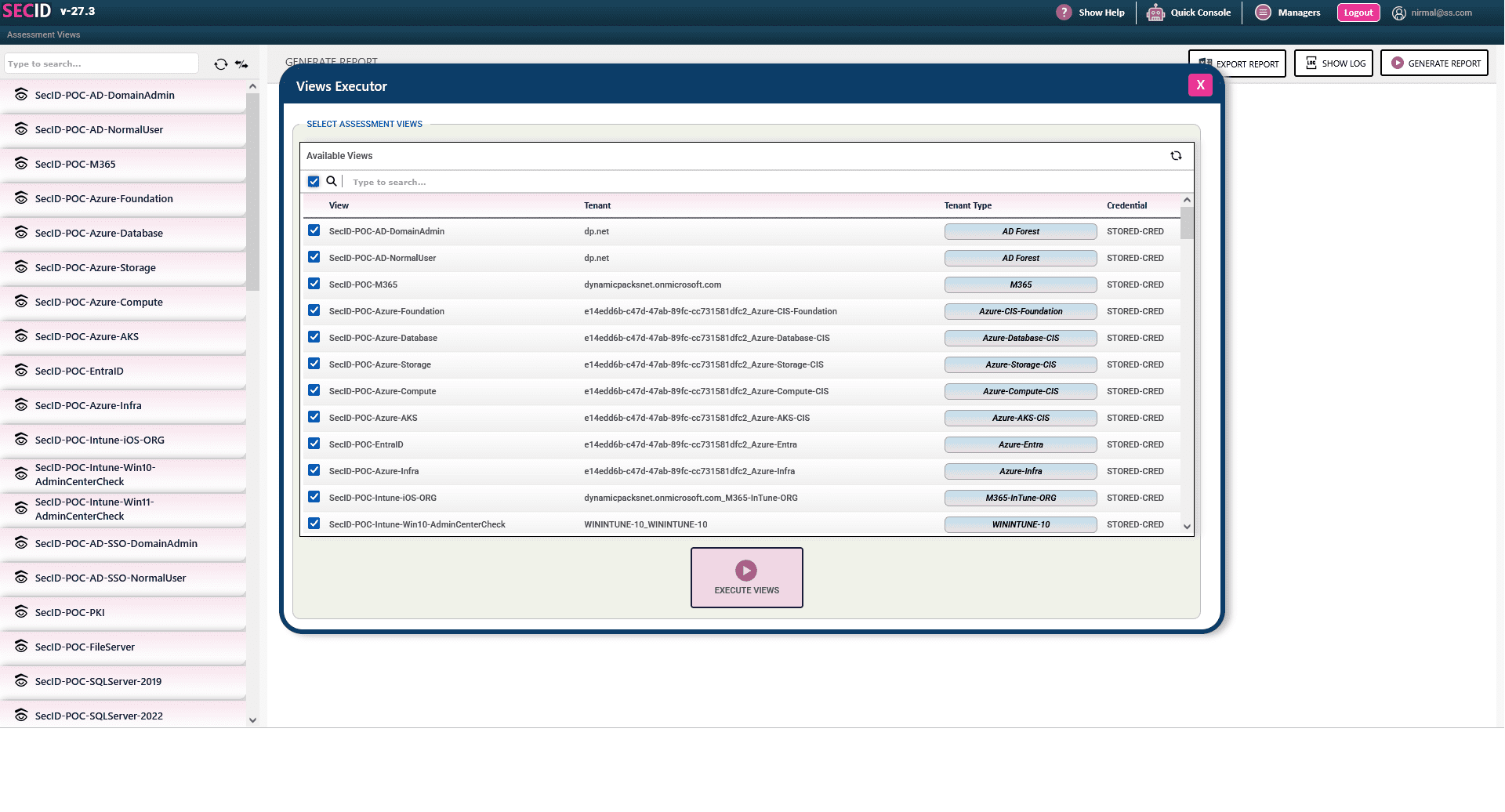
Once preparation is complete, simply run the Assessment Views Executor to start the assessments. You can choose to run all views or select specific ones.

After execution, SecID will generate:

  • A Global Security Score

  • Detailed security reports across all assessed technologies

STEP 1 - Install SecID

Step 1: Install SecID on a Windows Server 2016 or later. The server should have at least 16 GB of RAM and 200 GB of available disk space. You can download the latest version of SecID from our website or contact us at [email protected].

Once installed, create a POC user account and log in to SecID using POC User account. Note that POC User account can be following:

STEP 2 - Provide POC Inputs

Step 2: Provide the necessary PoC inputs for the selected technologies. For example, if you’re conducting a PoC for a Microsoft 365 tenant, you’ll need to provide the onmicrosoft.com domain name, along with details for other technologies such as Windows Servers.

You need to go to Managers > and then click on “Prepare POC” button to see prepare POC screen.

STEP 3 - Prepare POC Files

Step 3: Create the PoC files. During this process, SecID will generate assessment views and add the required tenants for the selected technologies.

STEP 4 - Execute POC

Step 4 is to execute the POC. As part of this step, you will run all assessment views that were created during the ‘Prepare POC’ phase.

High Level POC Process

#NO Item Description Remark
1 Prepare Environment 16 GB RAM, Windows Server 2016 or later with v4 CPU Verify to ensure Server is operational and healty and no other applications are consuming server resources.
2 Identify the POC Technologies Identify the list of POC Technologies.
3 Installation of SecID Install SecID on identified machine Ensure customer is using updated software. Current version is SecIDAI-27.
4 Create a POC User Account Create a POC User account in SecID, the username and password can be below: Username: [email protected] Password: POC@123
5 Note on M365 Assessment Global Reader with non MFA required will be required to perform M365 CIS Assessment. Global Reader must be added to following roles: ROLES: Compliance Administrator, Compliance Data Administrator, Global Reader and Sharepoint Administrator. Required to connect to ExchangeOnline
6 Prepare SecID – Install Modules Install required modules and tools for POC Technologies selected. Note that for preparing please use Prepare SecID console from Managers in SecID or install Modules manually. Note that AZ CLI and AWS CLI MSI need to be  downloaded and installed manually. Please check InstallModules sheet for installing modules.
7 Prepare SecID – Create Entra App Create required Entra App using Azure Portal or use SecID. The Entra App needs to be created with required Read-Only Permissions based on the technologies. Note we recommend creating an Entra App. App Name: SecIDPOC Ensure all POC technologies were selected when creating Entra App as the process will assign all required permissions.
8 Assign Entra App required IAM Roles on Azure Subscription The following IAM Roles need to be assigned on Azure Subscription: Reader IAM Role Key Vault Reader IAM Role App Reader and Data Access IAM Role Required for Azure CIS
9 Verify Modules Ensure all required modules have been installed
10 Verify Entra App and Permissions Ensure Entra App have been assigned necessary permissions and IAM Roles have been added to Subscription. Check using SecID Prepare screen
11 Add Credential Profiles Add necessary credential profiles in SecID. For example, for running AD Assessment using Domain Admin, we require that Domain Admin credentials to be stored in the SecID. If you used Azure Portal for creating Entra App then you should be creating a credential profile entry in SecID. Domain Admin is sufficient for all MS Infra assessment.
12 Add Tenants Depending on the POC Technologies, proceed to add Tenants.
13 Create Tests Templates Based on the POC Technologies, proceed to create Tests Templates. Note: Some Technology requires a Tests Template to be created. Please refer to POC Tech sheet for more information
14 Add Assessment Views Create Assessment Views. Assessment Views will be used to execute assessment for POC Technologies.
15 Execute Assessment Views Use SecID Views Executor for executing Assessment Views.
16 View Assessment Reports View Assessment Reports from Assessment Views. Make sure SecID has returned results for all POC Technologies.
17 View Global Securtiy Score From Managers click on Global Security Score to view the Global Security Score for POC Technologies.
18 Create Compliance Template Create Compliance Template and add Assessment Views.
Image

Learn Why Perform Health & Configuration Assessment as part of your Active Directory Security Assessment

If you have made the decision to conduct an Active Directory Security Assessment for your production AD Forests, it is crucial to recognize the potential security threats that may exist within your Active Directory environment. However, neglecting to address health and configuration issues poses a significant security risk. In this article, we will explore the importance of performing a “complete” Active Directory assessment, in addition to recommended security tests by organizations such as MITRE and ANSSI.

Learn More
Translate »
Index